You have two options: import from "Global" course library (#1 below), manually input course information (#2 below). If you do not find your course in the "Global" course library, we recommend you manually enter your course.
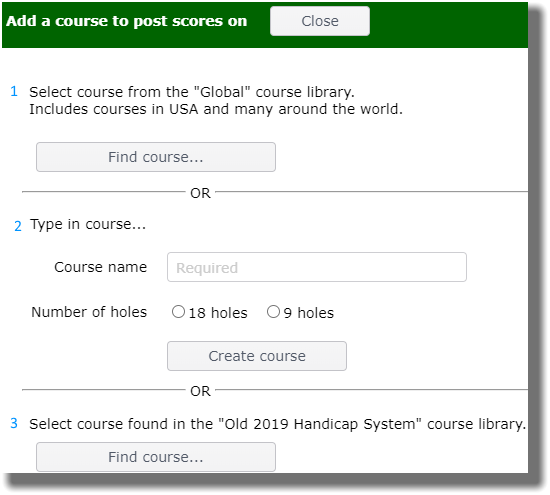
Find Course in "Global" course library
- Open the Main Menu, click "Courses" under Organization.
- Click on the green plus sign to "Add course".
- Click on "Find course..." button (#1 in above image).
- Select Country from drop down list.
- Select State from drop down list
- We recommend you type in the most unique part of the golf course name. In the example below, "preston" was enough to find a small number of courses from which to choose. It is not useful to type in words such as "golf," "club," "course," or "country."
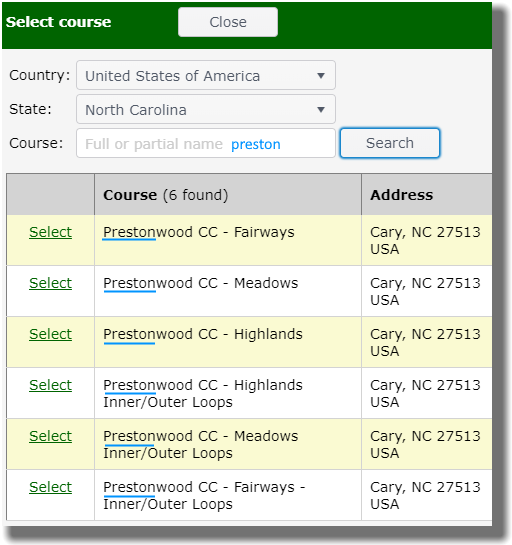
- When the course is displayed on the list, click on the Select link for that course.
- The course is now part of your Handicap System course list.
Manually add course information
If your search in the "Global" course library did not produce results, you can manually enter course information.
- Type in the Course name.
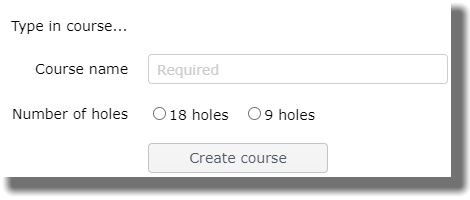
- Select Number of holes (18 or 9).
- Click on Create course button.
- Click on NoName tee (see below).
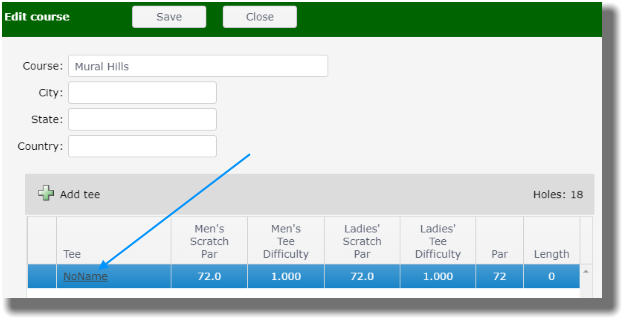
- Select Name and Color of tee from drop down menus and type in tee Abbreviation.
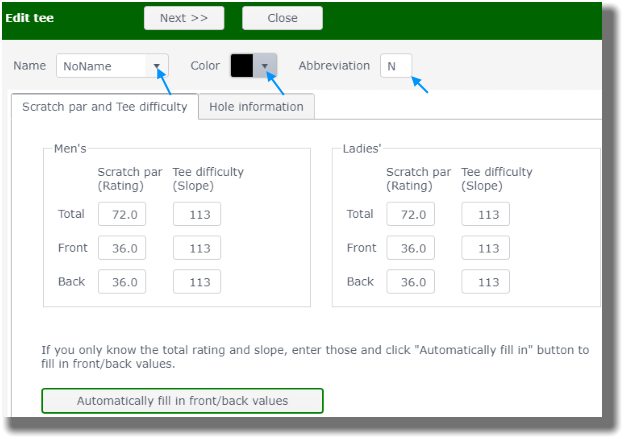
- Fill in scratch par and Tee difficulty for men and ladies and click Next button.
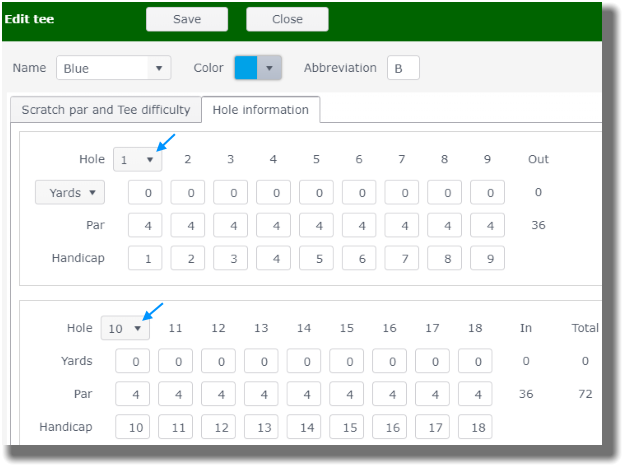
- Fill in all Hole information and click Save button.
Edit a Course
- Open the Main Menu, click "Courses" under Organization.
- Click on the course name to edit that course.
- You can edit course information, add a tee or edit a tee by clicking on a tee name.